Date: 20 Feb 2025
Application security
GO THROUGH IT IN YOUR FREE TIME
Owasp websecurity testing guide
Overall Goal:
The main goal of this exercise is to find security vulnerabilities in a web application. This is done by using automated scanning tools that simulate attacks to see if they can find weaknesses.
Authenticated zap scanning:
-
Open the
integrated server
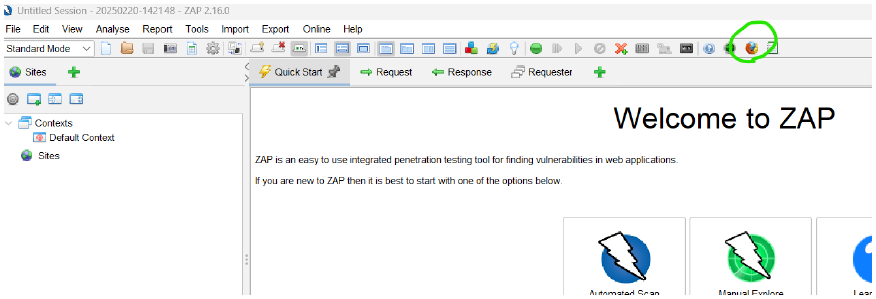
-
after opening the integrated firefox , hit the server in the burp suite's integrated browser(firefox).
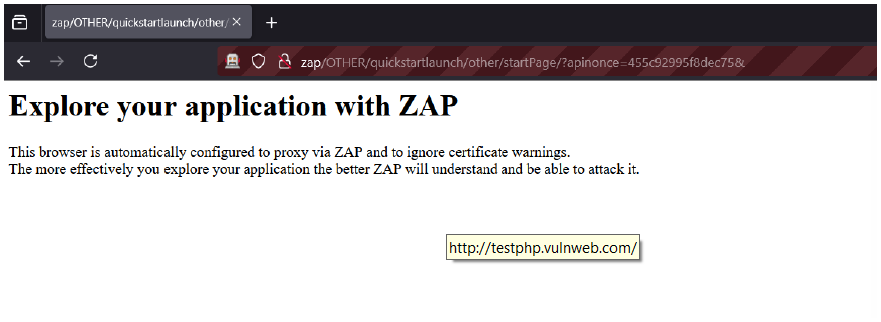
-
then right click on
POST->include in context->POST: userinfo/ new context->
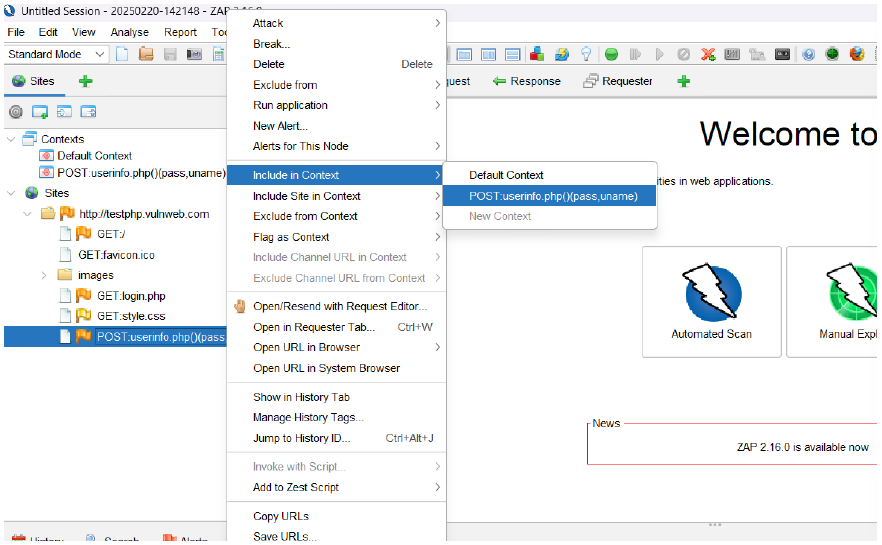
-
then select the
authentication->form-based authentication-> thenselect the targert url(rest details will come automatically)
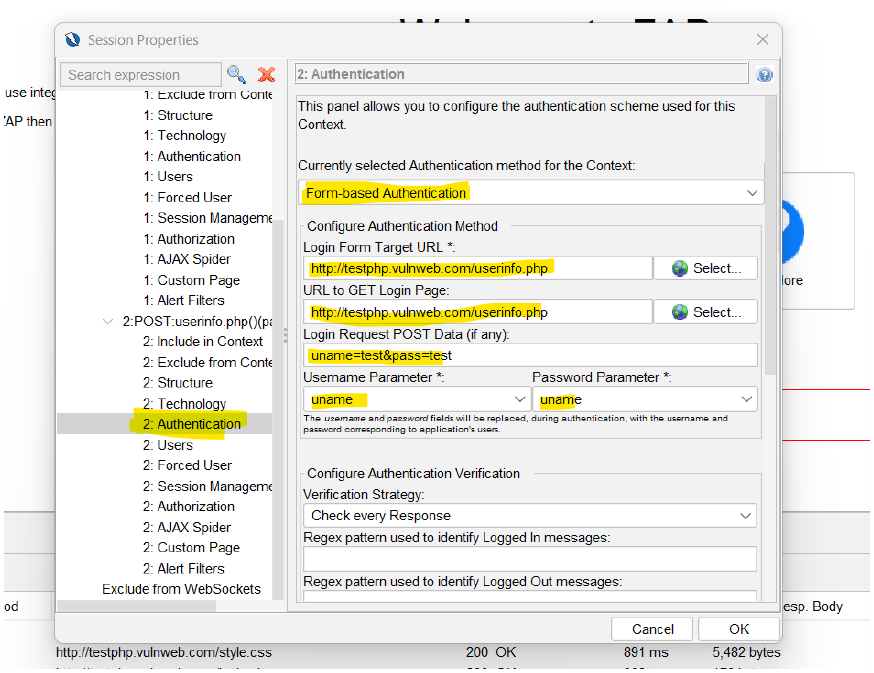
-
go to
users->add-> give theusername->check onenabled-> then username and password
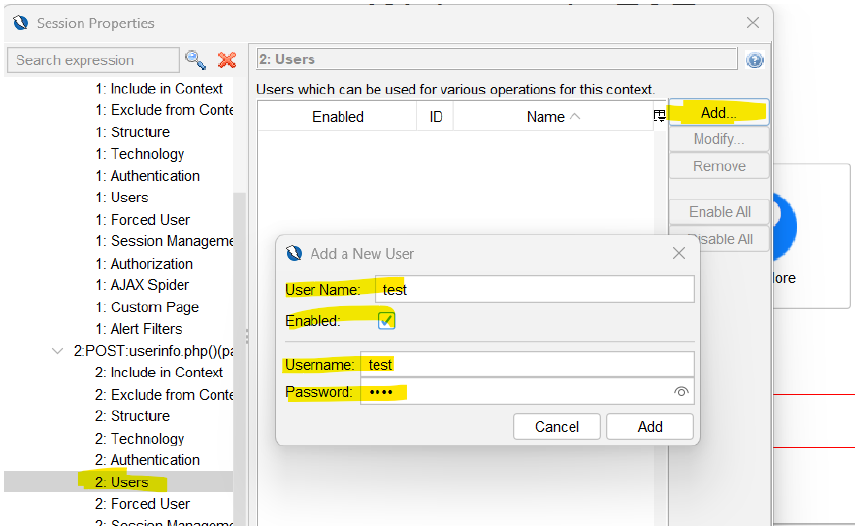
-
go to
authentication-> regex (from view source code page ,by clicking inspect)
- always stay in the
login pagewhile viewing the source code.
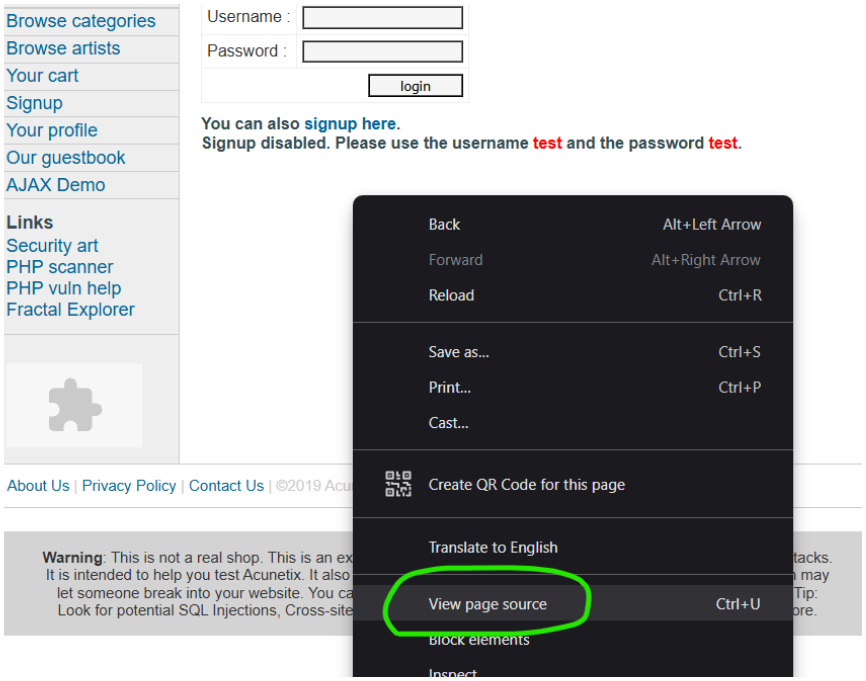
- then, from
view source codepage copy this and paste in the regext part.
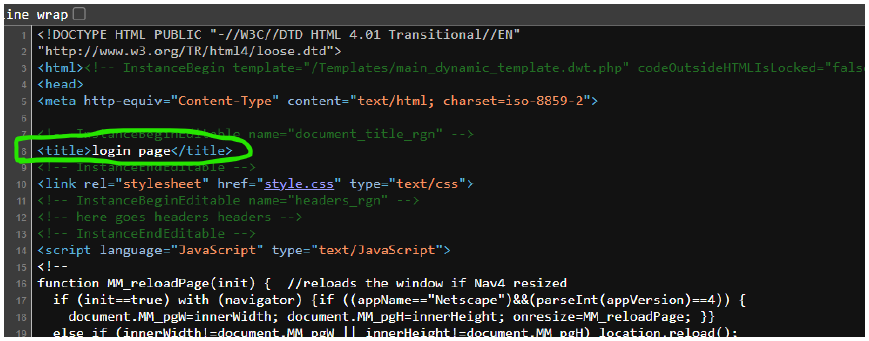
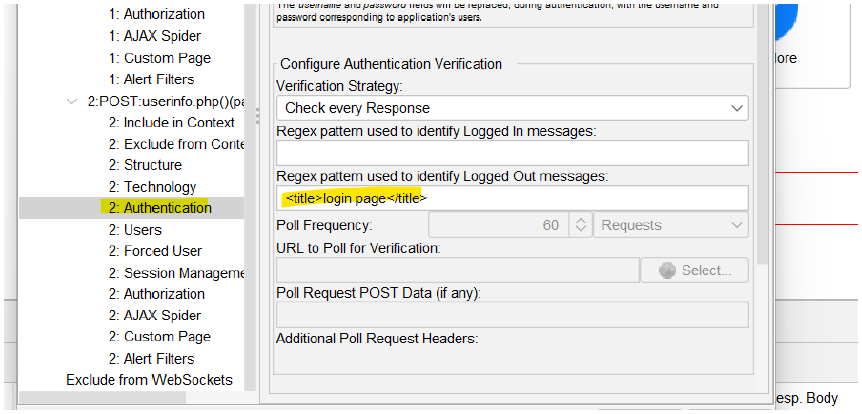
-
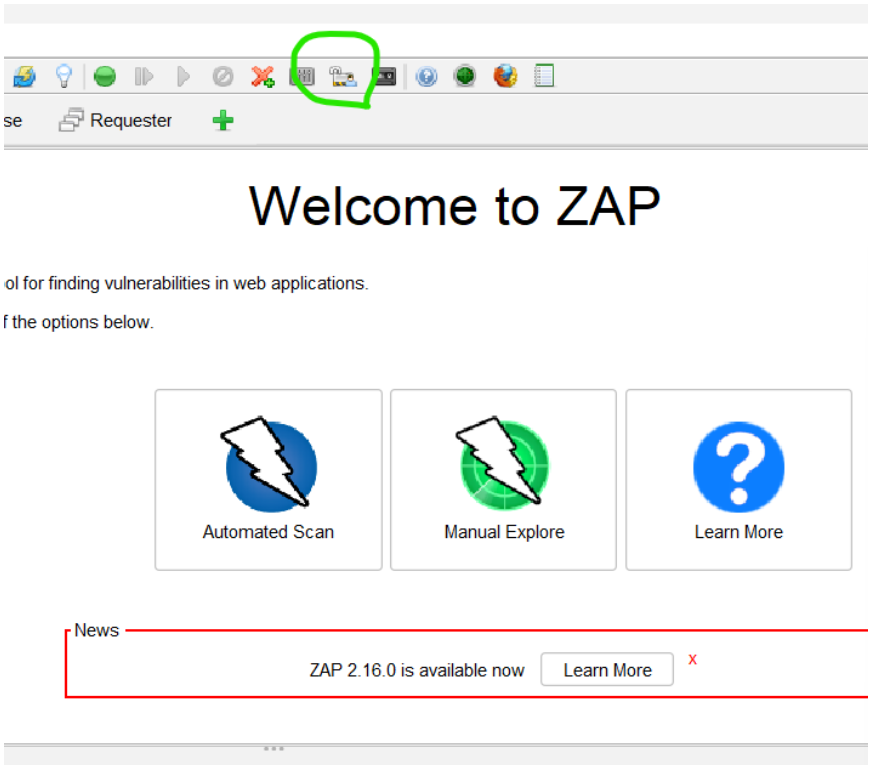
then enable the forced user mode
-
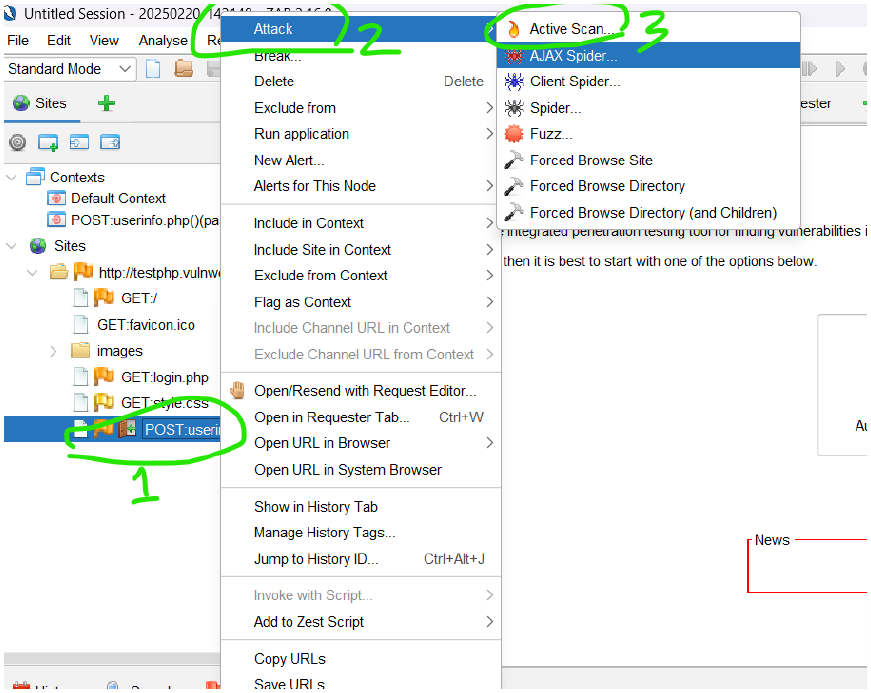
right click on the
POST:username->Attack->Active Scan
-
then after scanning, view all pages in the website so that zap can scan all the pages properly.
-
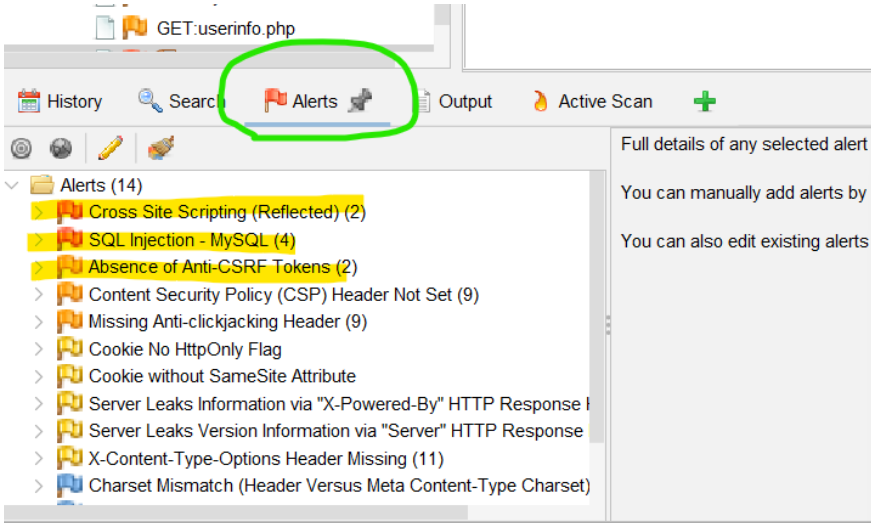
then you can go the
Alert sectionand then view the vulnerabilities. (the number of alerts and the type of alerts).
Know more about owasp zap:
- free, open-source tool
- designed to help find security vulnerabilities in web application
Authenticated Scanning: The exercise focuses on "authenticated scanning," which means ZAP is given login credentials to the web application. This allows ZAP to scan pages and features that are only available to logged-in users.
Steps Involved:
1. Setting up ZAP: The first step involves opening the ZAP tool and its integrated browser (which is a modified version of Firefox).
2. Targeting the Application: The browser is used to access the web application that will be tested (http://testphp.vulnweb.com/).
3. Defining the Context: ZAP needs to understand the structure of the application. This involves specifying which parts of the application should be included in the test.
4. Authentication Setup: Because this is authenticated scanning, ZAP needs to be able to log in to the application. This involves providing ZAP with:
The URL of the login page.
5. User Configuration: ZAP is configured with user accounts to use during the scan.
6. Login Verification: ZAP needs a way to confirm if a login was successful. This is done using a "regex" (regular expression), which is a pattern that ZAP can look for in the website's code to identify when a user is logged in.
7. Forced User Mode: This setting tells ZAP to use the configured user for its scans.
8. Active Scan: ZAP performs an "active scan," which means it sends various types of requests to the web application to try and find vulnerabilities.
9. Post-Scan Actions: After the scan, the user is instructed to explore the website in the browser so ZAP can find all the pages and then view the alerts.
- Viewing Vulnerabilities: ZAP then presents a list of potential vulnerabilities it has found, such as Cross-Site Scripting and SQL Injection
![[attachments/Reference pdf for burp suit and zap.pdf]]
-
Cross-Site Scripting (xss):
- a
vulnerabilitythat allows attackers to inject malicious script that can be executed by other users' browser.
- a
-
SQL injection:
- a
vulnerabilitythat allows attackers to interfere with database queries that a web application make. This can lead to modify and fetch sensitive data.
- a
-
Cross-Site Request Forgery (CSRF):
- a
vulnerabilitythat allows an attacker to trick a user's browser into performing an unwanted action on a web application that the user is currently authenticated to.
- a